> For the complete documentation index, see [llms.txt](https://qubitvpn.gitbook.io/qubitvpn-docs/llms.txt). Markdown versions of documentation pages are available by appending `.md` to page URLs; this page is available as [Markdown](https://qubitvpn.gitbook.io/qubitvpn-docs/deprecated/v2.0-deprecation-deprecated-august-18-2026/how-to-use-the-premium-plan/client-dashboard-under-premium-plan.md).

# Client Dashboard Under Premium Plan

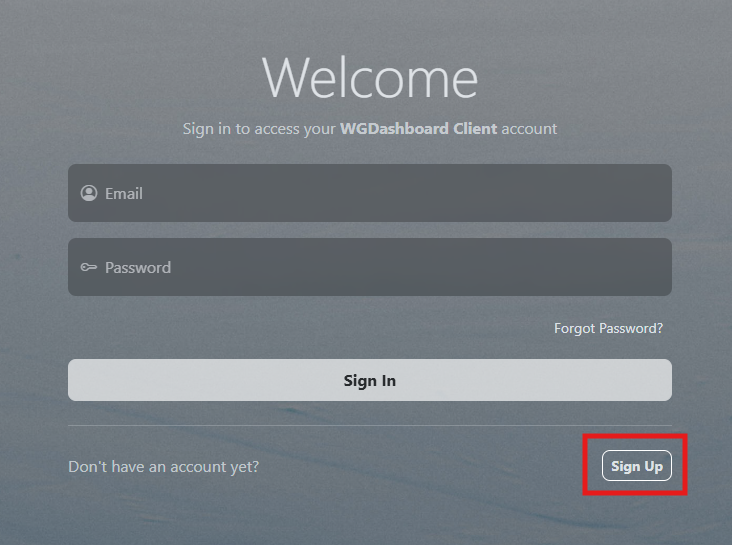
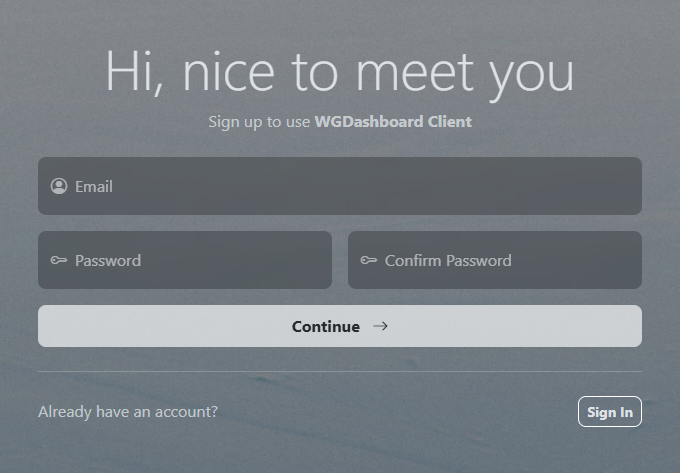
Your clients (employees, customers, etc.) must access the dashboard from `https://username.qubitvpn.com/client` (please replace "username" with the username you provided during purchase) and create their accounts.

### Client/User sign-up:

{% stepper %}
{% step %}

#### [Install WireGuard](/qubitvpn-docs/deprecated/v2.0-deprecation-deprecated-august-18-2026/install-wireguard.md)

{% endstep %}

{% step %}

#### Sign up for a dashboard account

<div align="left"><figure><img src="https://1665844291-files.gitbook.io/~/files/v0/b/gitbook-x-prod.appspot.com/o/spaces%2Fh2w9Up9seZJlW6lHfRCt%2Fuploads%2FSNDhioRyPpnDaiaAd2Z0%2Fimage.png?alt=media&amp;token=8e625ea0-4075-48a2-9c20-c659e3d41586" alt="" width="366"><figcaption></figcaption></figure></div>
{% endstep %}

{% step %}

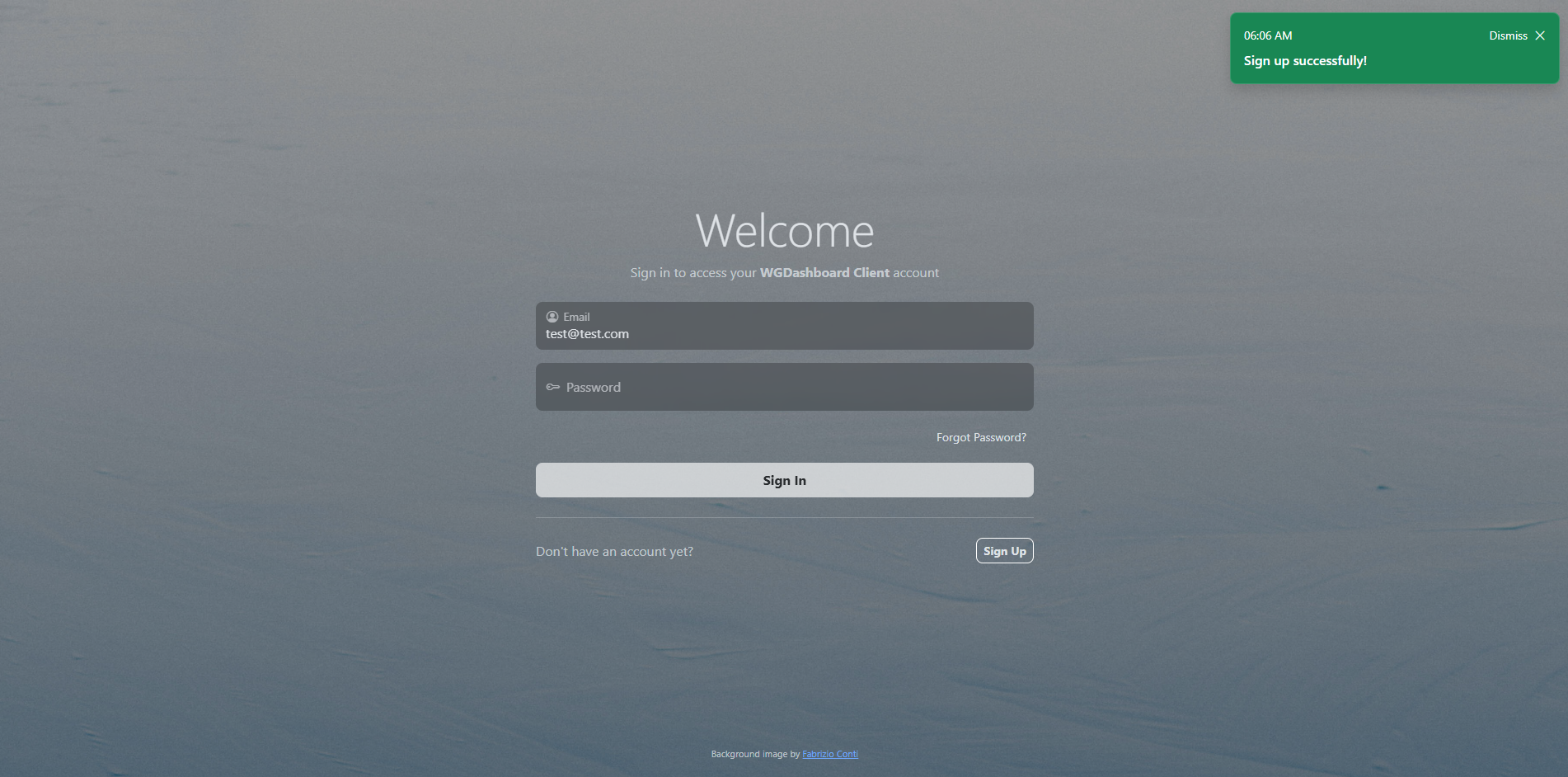
#### Enter your credentials

<div align="left"><figure><img src="https://1665844291-files.gitbook.io/~/files/v0/b/gitbook-x-prod.appspot.com/o/spaces%2Fh2w9Up9seZJlW6lHfRCt%2Fuploads%2FrAJ7JfUfHKPsRe1zC3ww%2Fimage.png?alt=media&amp;token=77052a6d-152c-4261-b206-d07ea31f78ca" alt="" width="340"><figcaption></figcaption></figure></div>
{% endstep %}

{% step %}

#### Log into the account you just created

<div align="left"><figure><img src="https://1665844291-files.gitbook.io/~/files/v0/b/gitbook-x-prod.appspot.com/o/spaces%2Fh2w9Up9seZJlW6lHfRCt%2Fuploads%2Ffg7wFkWc2lkf0sUoqnRZ%2Fimage.png?alt=media&amp;token=e6dc0b15-d15f-4594-a646-df87845861b9" alt=""><figcaption></figcaption></figure></div>
{% endstep %}

{% step %}

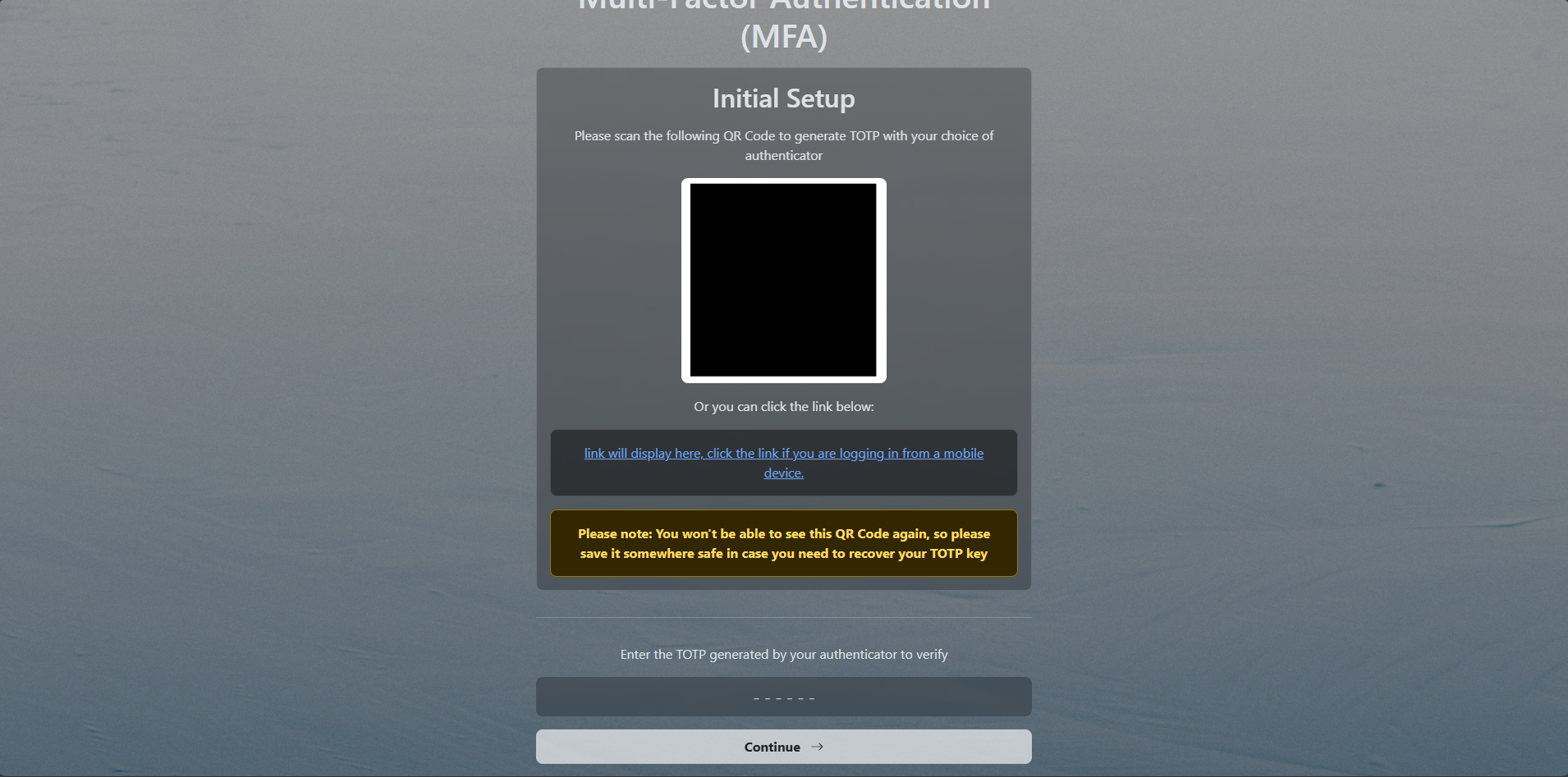
#### Multi-Factor Authentication

Scan the QR Code on your phone (if you are logging in from your phone, click the link instead).

<div align="left"><figure><img src="https://1665844291-files.gitbook.io/~/files/v0/b/gitbook-x-prod.appspot.com/o/spaces%2Fh2w9Up9seZJlW6lHfRCt%2Fuploads%2FugBsavBpZSRUC05MtbHc%2Fimage.png?alt=media&amp;token=2f791214-0a27-4cec-832e-2f8b63e3ebf2" alt=""><figcaption></figcaption></figure></div>
{% endstep %}

{% step %}

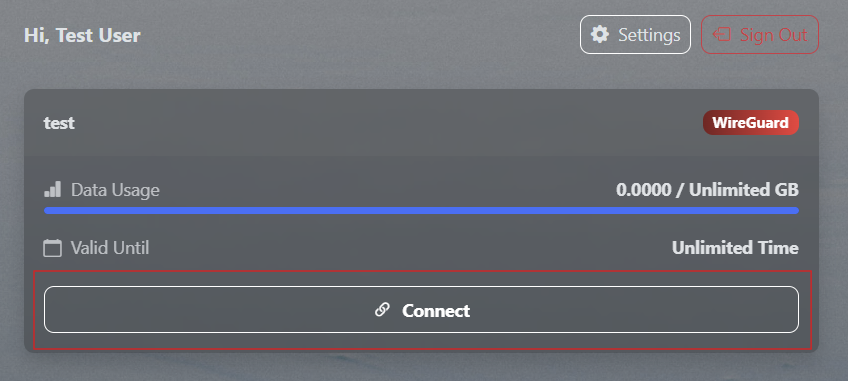
#### Connect to VPN Profile/Tunnel

Press Connect <i class="fa-turn-down">:turn-down:</i> *(This will only be available once your Administrator(s) or IT Team add it to your account)*

<div align="left"><figure><img src="https://1665844291-files.gitbook.io/~/files/v0/b/gitbook-x-prod.appspot.com/o/spaces%2Fh2w9Up9seZJlW6lHfRCt%2Fuploads%2FXefju90OnVTOVapu1lxN%2Fimage.png?alt=media&amp;token=f8437e8a-6a20-48d7-8ac9-4baecc3bd859" alt=""><figcaption></figcaption></figure></div>
{% endstep %}

{% step %}

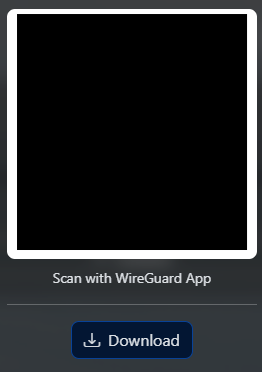
#### Scan QR Code or Download

You may either scan the QR Code within the Android/iOS WireGuard App or click Download to import it into either the WireGuard mobile app or Windows/Mac App.

<div align="left"><figure><img src="https://1665844291-files.gitbook.io/~/files/v0/b/gitbook-x-prod.appspot.com/o/spaces%2Fh2w9Up9seZJlW6lHfRCt%2Fuploads%2FBV0xJAs1d5Uk7A45wFNy%2Fimage.png?alt=media&amp;token=3910e935-0760-4096-a74e-430cf799cbc5" alt=""><figcaption></figcaption></figure></div>

{% hint style="info" %}
If you chose to Download the configuration file, please upload it to the WireGuard App. If you are on a computer, click "Import tunnel(s) form file". If you are on a phone, click "Create from file or archive". Your popups may look different than the examples below.

![](https://splicate.my.canva.site/how-to-use-wireguard-with-qubitvpn/_assets/media/737a8424714273cb1fbb60deafd89e8d.png)![](https://splicate.my.canva.site/how-to-use-wireguard-with-qubitvpn/_assets/media/46b951efc0540498097edb5578288fa5.jpg)
{% endhint %}
{% endstep %}
{% endstepper %}

### Add VPN Profile/Peer to a user:

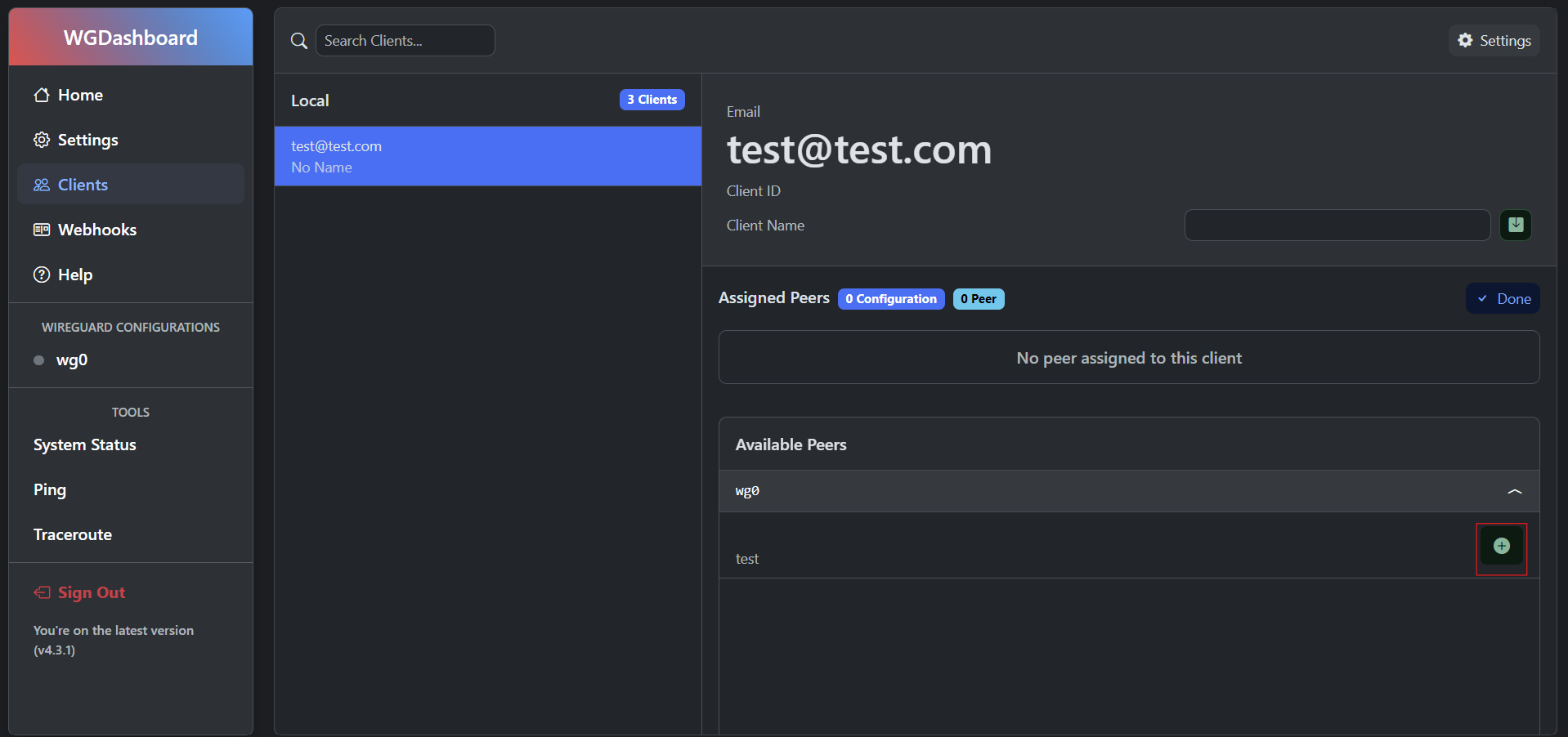
In your Admin Dashboard, click on **Clients** in the left sidebar, click on the user you want to manage, and add the "Peer" (VPN Profile) to their account.
<div align="left"><figure><img src="https://1665844291-files.gitbook.io/~/files/v0/b/gitbook-x-prod.appspot.com/o/spaces%2Fh2w9Up9seZJlW6lHfRCt%2Fuploads%2FqcWoxeuvaGZlHHi8r5Tu%2Fimage.png?alt=media&amp;token=12a2806b-0115-4618-9aff-f401f75db485" alt=""><figcaption></figcaption></figure></div>