> For the complete documentation index, see [llms.txt](https://qubitvpn.gitbook.io/qubitvpn-docs/llms.txt). Markdown versions of documentation pages are available by appending `.md` to page URLs; this page is available as [Markdown](https://qubitvpn.gitbook.io/qubitvpn-docs/deprecated/old-basic-standard-plans-deprecated-1-27-26.md).
# OLD Basic/Standard Plans (deprecated 1/27/26)
## How to Configure Tunnel
* Log into QubitVPN Tunnel Panel
* Click Manage under Instance List
* Click Start on the top right
It may give you an error if you just logged into the panel, start it once or twice again and it will work. (Please contact if it doesn’t)
* Continue from here (10.253.0.4 is your **Private VPN IP**, not your home internet IP or your VPN Public IP, Basic Plan only gets one tunnel through that private IP)
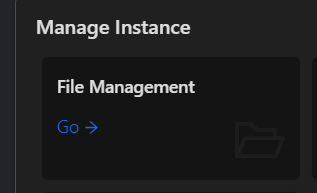
* Go to File Management and download the .conf files for your 3 VPN devices and your Tunnel device. (QR Codes coming soon)
* Upload the .conf files to your devices

By following these steps, you should be able to easily install and use WireGuard on your mobile device or computer. ***Make sure to open the tunneled port on your home or business computer/server as well.*** Enjoy a secure and private internet connection!
## Opening the port on your computer (not your router)
{% content-ref url="/pages/5L8S1Sxbr7PHKGlOysWZ" %}
[Allow Incoming Port Connection](/qubitvpn-docs/how-to-use/allow-incoming-port-connection.md)
{% endcontent-ref %}



 * Upload the .conf files to your devices